This integration has been tested on software version 3.3.9. I can not guarantee any level of support for older software versions, and future updates are only guaranteed to support the latest console software at the time of release.
Board setup
First, open the system settings.
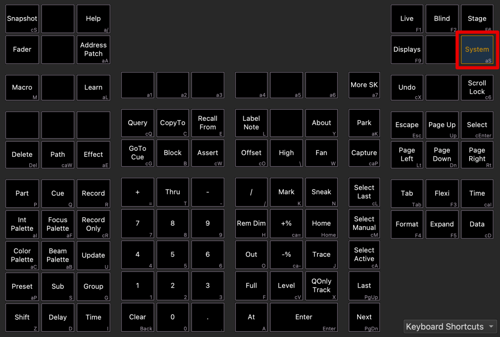
Click the [System] key to open the system settings. This is a screenshot of ETCNomad, but this key should be in the same spot on a physical console.
Then, navigate to System > Mobile Apps. Here, you need to enable both Allow App Connections and Visible to Mobile Apps.
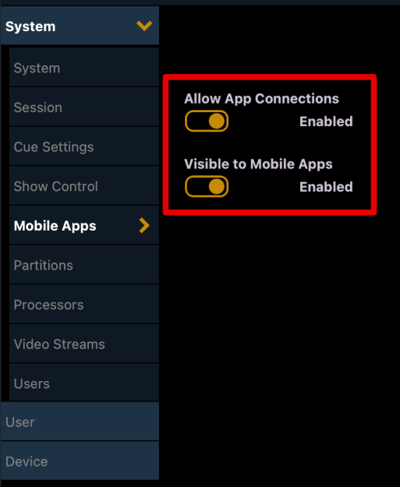
Enable both of these switches. You may leave Visible to Mobile Apps turned off if you don’t want auto-discovery.
Then, you need to enable OSC. To do so, navigate to Device > Network, and enable Third Party OSC.
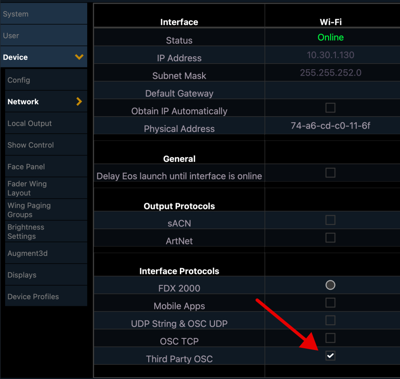
Enable the Third Party OSC checkbox on the active interface. You can leave all the other checkboxes here set to whatever you need for your show, none of those will affect this app.
And that’s it! The board should be configured the way it needs to be for the app to connect now, no need for any Show Control configuration or anything else.
Now, on the app side, click on Add Board.
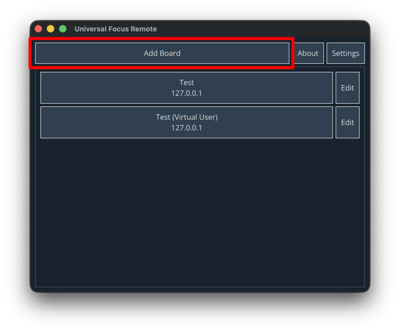
Then, you should see your board in the list of discovered boards! If you do, great! Just go ahead and click on that, give it a name, and you should be able to connect right up! If you don’t (which is not uncommon to happen in corporate networks where multicast traffic is restricted), then follow the steps below.
Manual connection
First, follow the steps above to set up the board.
To manually connect, you first will need the board’s IP address. This can be found both in the network configuration screen and the CIA About page.

 This page can be accessed by clicking the [About] key on the console.
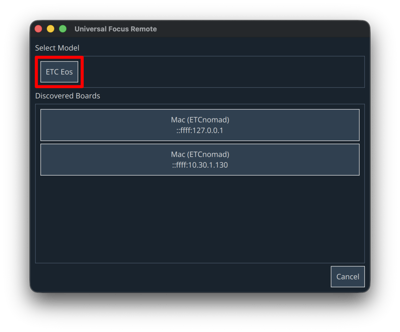
Now, in the app, click the ETC Eos button.
Then, on the configuration screen which that brings you to, enter the IP address from before, and set the other settings to what you want.
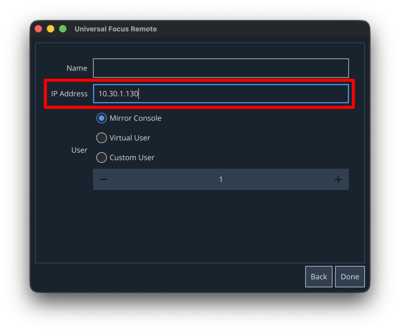
Once you confirm, you should be able to select the board from the list to connect to it!
Configuration options
This board is pretty simple configuration-wise, thanks to the simplified networking setup that ETC has enabled. These are the configuration options available.
IP Address
This is just the IP address of the board to connect to.
User
This allows you to select the console user you would like to connect as. The options are described in the table below.
| Option | Description |
|---|---|
| Mirror Console | This option automatically selects the same user that is selected on the console. |
| Virtual User | This option selects a virtual user who will have a completely independent command line from any console users. |
| Custom User | This option allows you to enter a custom user number to connect as. |